
Learn how to fix IPTV buffering with 15 proven solutions. Improve streaming quality, reduce lag, and enjoy smoother live TV with this complete troubleshooting guide.
Nothing ruins movie night or a live football match faster than constant buffering. One moment you’re fully immersed in the action, and the next you’re staring at a loading circle instead of the screen. Whether it happens every few minutes or only during peak hours, IPTV buffering is one of the most common frustrations for streaming users.
The good news is that buffering doesn’t always mean there’s something wrong with your IPTV service. In reality, freezing and lag can be caused by several factors, including your internet connection, Wi-Fi signal, router settings, streaming device, or even the IPTV player you’re using.
Many people immediately blame the provider, only to discover later that a simple change—such as switching from Wi-Fi to Ethernet or clearing an app’s cache—completely solves the issue.
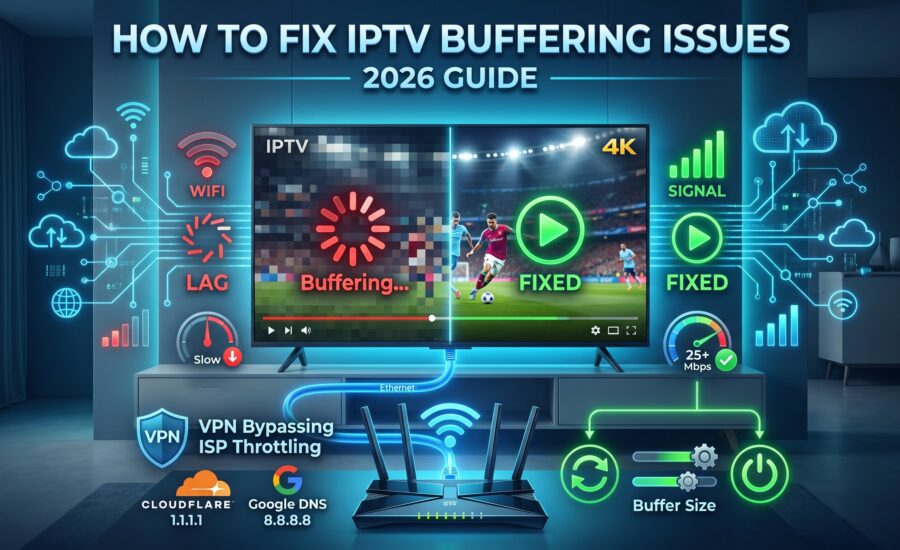
This guide explains why IPTV buffering happens and provides 15 practical solutions that can dramatically improve your streaming experience. These recommendations apply whether you’re using a Smart TV, Android TV Box, Amazon Fire TV Stick, smartphone, tablet, or computer.
By the end of this article, you’ll know exactly how to identify the source of buffering and which fixes are most likely to work for your setup.

Why Does IPTV Buffering Happen?
Before trying to solve the problem, it’s important to understand what’s happening behind the scenes.
Unlike traditional cable television, IPTV streams content over the internet. Your device continuously downloads small pieces of video while you’re watching. If new data doesn’t arrive quickly enough, playback pauses until enough information has been loaded. That’s buffering.
Several different issues can interrupt this flow of data, including:
- Slow internet speeds
- Unstable Wi-Fi connections
- Network congestion
- Router limitations
- IPTV player settings
- Overloaded streaming devices
- Temporary server issues
- VPN performance
- ISP traffic management
- Outdated firmware
Because there are many possible causes, effective troubleshooting requires a step-by-step approach rather than guessing.

1. Test Your Internet Speed
The first thing to check is your internet connection.
Many users assume they have “fast internet” simply because websites load quickly. Streaming live television, however, requires a stable connection that can maintain consistent speeds over time.
Run several speed tests throughout the day, especially during the hours when buffering usually occurs.
Also pay attention to:
- Download speed
- Upload speed
- Latency (Ping)
- Jitter
- Packet loss
A connection with moderate speeds but excellent stability often performs better than a very fast connection that experiences frequent fluctuations.
If your speeds drop significantly during the evening, network congestion may be affecting your streaming quality.
2. Use an Ethernet Connection Instead of Wi-Fi
Wireless networks are incredibly convenient, but they’re also one of the biggest causes of IPTV buffering.
Wi-Fi signals can be weakened by:
- Thick walls
- Long distances
- Neighboring Wi-Fi networks
- Bluetooth devices
- Microwaves
- Baby monitors
- Smart home devices
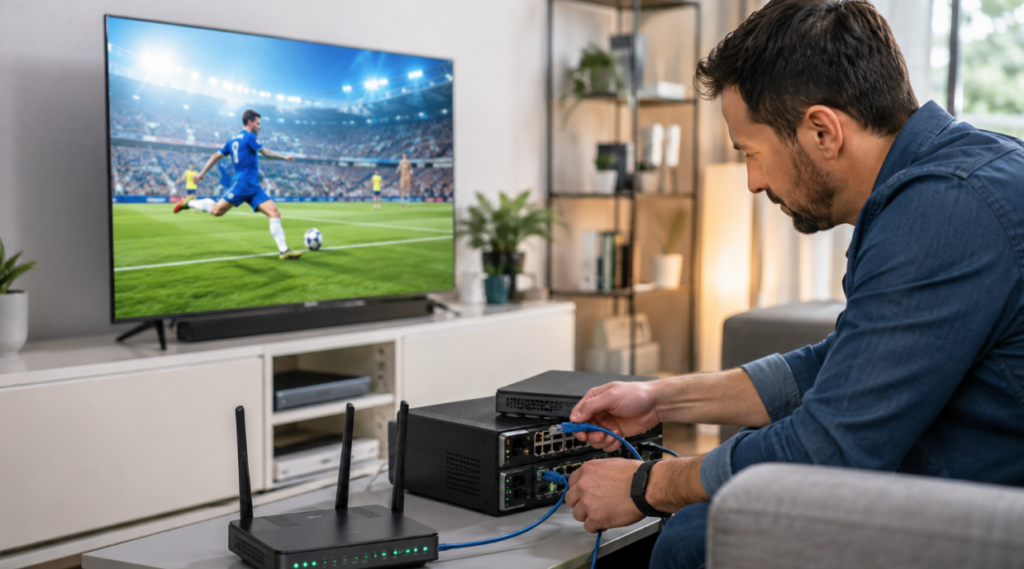
Whenever possible, connect your streaming device directly to your router using an Ethernet cable.
A wired connection provides:
- Lower latency
- Greater stability
- Less interference
- Faster data transfer
- More reliable live streaming
Many users notice an immediate improvement after switching from Wi-Fi to Ethernet.
3. Restart Your Router
Routers are small computers that operate continuously.
Over time they accumulate temporary processes, memory usage, and connection errors that may affect network performance.
Restarting your router is one of the easiest troubleshooting steps and often resolves temporary connectivity issues.
Simply:
- Turn off the router.
- Wait about 60 seconds.
- Turn it back on.
- Allow it to reconnect completely.
- Test your IPTV stream again.
Many people are surprised by how effective this simple solution can be.
4. Reduce Network Traffic
Your IPTV stream competes for bandwidth with every other connected device in your home.
If someone is:
- Downloading games
- Uploading large files
- Watching multiple 4K videos
- Participating in video meetings
- Backing up photos to the cloud
your available bandwidth may become limited.
Try streaming when fewer devices are active or temporarily pause large downloads.
If multiple family members regularly stream content at the same time, upgrading your internet plan may also improve overall performance.
5. Improve Your Router Placement
Router placement has a significant impact on wireless performance.
Many people install their router wherever it’s most convenient rather than where it provides the strongest signal.
For better Wi-Fi coverage:
- Place it near the center of your home.
- Keep it elevated.
- Avoid enclosed cabinets.
- Keep it away from large metal objects.
- Minimize physical obstacles.
Even moving the router a few feet can noticeably improve signal quality.
6. Switch to the 5 GHz Wi-Fi Band
Modern routers typically broadcast two wireless networks:
- 2.4 GHz
- 5 GHz
The 2.4 GHz band offers longer range but is often crowded because many household devices use it.
The 5 GHz band generally provides:
- Faster speeds
- Lower interference
- Better streaming performance
- Reduced latency
If your streaming device is close to the router, connecting to the 5 GHz network can significantly reduce buffering.
7. Keep Your IPTV Player Updated
Your IPTV player is responsible for decoding and displaying the video stream. Like any software, it receives regular updates that improve stability, compatibility, security, and overall performance.
If you’re using an outdated version, you may experience problems that have already been fixed by the developer.
Before assuming buffering is caused by your network, check whether your IPTV application has an available update. Many updates include performance improvements specifically designed to reduce crashes, playback interruptions, and compatibility issues with newer streaming technologies.
It’s also worth restarting the application after installing updates to ensure the new version is running properly.
8. Clear the App Cache
Most IPTV applications store temporary files to speed up loading times. While this cache is useful, it can eventually become too large or contain outdated data that affects performance.
Symptoms of an overloaded cache may include:
- Slow channel loading
- Freezing after changing channels
- Random playback interruptions
- Delayed menu navigation
- Unexpected app crashes
Clearing the cache gives the application a fresh start without usually affecting your account information or playlist.
If you haven’t done this for several months, it’s a simple maintenance step that can improve responsiveness.
9. Restart Your Streaming Device Regularly
Many people leave their Smart TV or Android TV Box running for weeks without a restart.
Over time, background processes continue consuming memory and system resources.
A simple reboot can:
- Free available RAM
- Close unnecessary background applications
- Refresh network services
- Improve overall device responsiveness
This recommendation applies to virtually every streaming device, including Smart TVs, Android TV Boxes, Fire TV Stick devices, smartphones, tablets, and computers.
If buffering appears after several hours of continuous use, restarting the device may restore smooth playback.
10. Close Background Applications
Streaming devices often run multiple applications simultaneously.
Even if they aren’t visible on your screen, background apps may continue using:
- Internet bandwidth
- Processor resources
- Device memory
- Storage access
Examples include:
- Automatic cloud backups
- Software updates
- File downloads
- Music streaming
- Social media synchronization
Closing unnecessary applications gives your IPTV player more system resources to work with.
This is especially important on older Android TV Boxes with limited memory.
11. Check Your Router’s Firmware
Your router’s firmware controls how internet traffic is managed throughout your home.
Manufacturers frequently release firmware updates that improve:
- Network stability
- Wi-Fi performance
- Security
- Device compatibility
- Connection reliability
Many users never update their router after installation.
Logging into your router’s administration page and checking for firmware updates can improve long-term network performance.
Always follow the manufacturer’s instructions when updating firmware, and avoid interrupting the process.
12. Optimize Your Home Network
A fast internet subscription alone doesn’t guarantee smooth IPTV streaming.
Your home network should also be configured efficiently.
Some practical improvements include:
- Using modern Wi-Fi standards when supported.
- Positioning access points strategically.
- Reducing wireless interference.
- Limiting unnecessary connected devices.
- Prioritizing streaming traffic where supported.
A well-optimized network benefits not only IPTV but also video calls, gaming, and other online activities.
Common IPTV Buffering Mistakes
Many users unknowingly create conditions that increase buffering.
Some of the most common mistakes include:
Assuming Faster Internet Always Solves the Problem
Doubling your download speed won’t necessarily eliminate buffering if the real issue is Wi-Fi interference, router placement, or device performance.
Ignoring Router Maintenance
Routers need occasional restarts and updates just like computers.
Neglecting them for years can gradually reduce network reliability.
Using Older Streaming Hardware
Streaming technology continues to evolve.
An older device with limited processing power may struggle with modern high-resolution streams even if your internet connection is excellent.
Running Too Many Devices Simultaneously
Every connected device shares available bandwidth.
Managing household internet usage during important live events can significantly improve streaming quality.
Forgetting About Local Network Problems
Sometimes buffering has nothing to do with the IPTV service itself.
Testing another streaming platform or another device on the same network can help determine whether the issue is local or more general.
Quick IPTV Buffering Troubleshooting Checklist
If your IPTV keeps freezing, work through this checklist before making bigger changes:
- Test your internet speed.
- Restart your router.
- Restart your streaming device.
- Clear the IPTV app cache.
- Update the IPTV application.
- Install the latest device software updates.
- Switch from Wi-Fi to Ethernet if possible.
- Use the 5 GHz Wi-Fi band when appropriate.
- Reduce network activity from other devices.
- Close unnecessary background applications.
- Check your router firmware.
- Observe whether buffering occurs only at certain times of the day.
Following these steps methodically often resolves the most common streaming issues without requiring advanced technical knowledge.
13. Check if Your VPN Is Affecting Performance
Many IPTV users choose to use a VPN for privacy or to secure their internet connection. While a VPN can be beneficial in some situations, it can also introduce additional latency or reduce connection speeds if the server is overloaded or located far from your physical location.
If buffering starts immediately after enabling a VPN, try these steps:
- Connect to a server closer to your location.
- Switch to a less crowded server.
- Change the VPN protocol if your provider offers multiple options.
- Temporarily disconnect the VPN and compare performance.
If streaming improves without the VPN, you’ve identified a potential bottleneck. In that case, experimenting with different server locations or settings may help you find a better balance between privacy and performance.
14. Keep Your Device Software Updated
It’s easy to focus on your IPTV app while overlooking the operating system running your device.
Whether you use Android TV, Google TV, Fire OS, tvOS, Windows, macOS, or another platform, system updates often include:
- Performance improvements
- Network optimizations
- Security enhancements
- Better compatibility with streaming applications
- Bug fixes affecting media playback
Manufacturers also optimize how devices handle memory, Wi-Fi connectivity, and video decoding. Keeping your operating system up to date helps ensure your hardware performs as intended.
15. Know When the Problem Isn’t on Your Side
After checking your internet connection, router, streaming device, and application settings, there may still be times when buffering persists.
Sometimes the issue isn’t caused by your home setup at all.
Temporary maintenance, unexpected technical incidents, or unusually high demand can affect streaming performance. If buffering appears suddenly after weeks or months of smooth viewing, it’s worth waiting a short time and testing again later before making major changes to your network.
One useful troubleshooting method is to compare different types of online services on the same connection. If other streaming platforms perform normally while only one service experiences interruptions, that information can help narrow down the source of the problem.
How to Prevent IPTV Buffering in the Future
The best approach is preventive maintenance rather than troubleshooting only after problems appear.
Following a few simple habits can keep your streaming experience smooth over the long term:
- Restart your router every few weeks.
- Reboot your streaming device regularly.
- Install software and firmware updates when available.
- Keep your IPTV application updated.
- Maintain sufficient free storage space on your device.
- Avoid running unnecessary applications in the background.
- Use a wired connection whenever practical.
- Place your router where it provides strong, consistent coverage.
- Monitor your home network if many devices are connected at once.
Small improvements made consistently often have a bigger impact than one major change.
IPTV Buffering Myths
Many online forums are filled with advice that sounds convincing but isn’t always accurate. Here are a few common misconceptions.
Myth 1: Faster Internet Always Eliminates Buffering
Not necessarily.
A household with a stable 100 Mbps connection may enjoy smoother streaming than one with an unstable 1 Gbps connection. Consistency, latency, and packet delivery are just as important as raw speed.
Myth 2: Every Freezing Issue Is Caused by the IPTV Service
Many playback interruptions originate within the home network itself.
Weak Wi-Fi signals, overloaded devices, outdated applications, or router issues are among the most common causes of buffering.
Myth 3: Buying the Most Expensive Router Instantly Solves Everything
A high-end router can improve coverage and performance, but proper placement, updated firmware, and a well-configured home network remain equally important.
Frequently Asked Questions
Why does IPTV buffer even with fast internet?
High download speeds don’t guarantee smooth streaming. Wi-Fi interference, network congestion, device performance, router configuration, and connection stability can all influence playback quality.
Is Ethernet better than Wi-Fi for IPTV?
In most situations, yes.
A wired Ethernet connection generally offers lower latency, greater stability, and fewer interruptions than Wi-Fi, making it an excellent choice for live streaming.
How often should I restart my router?
Restarting your router every few weeks is a good maintenance habit. If you notice reduced performance or frequent buffering, restarting sooner may help resolve temporary networking issues.
Can an outdated IPTV player cause freezing?
Yes.
Older versions may contain bugs, compatibility issues, or performance problems that have already been fixed in newer releases.
Does device age matter?
Absolutely.
Older streaming devices may have slower processors, less memory, or outdated wireless hardware, making it more difficult to handle high-quality video streams smoothly.
Can too many connected devices cause buffering?
Yes.
When multiple devices are downloading files, streaming videos, or participating in online activities simultaneously, available bandwidth is shared across the network. Reducing heavy network activity can improve streaming performance.
Final Thoughts
Buffering is one of the most common IPTV challenges, but it’s also one of the most misunderstood. Many people immediately assume that the streaming service is at fault, when in reality the issue often lies much closer to home.
A stable internet connection, a well-positioned router, an up-to-date streaming device, and regular software maintenance all contribute to a smoother viewing experience. By working through the troubleshooting steps in this guide one by one, you can often identify the root cause without replacing equipment or making unnecessary changes.
Remember that no single solution works for every situation. The best results come from looking at your setup as a whole—from your network and hardware to the software you use every day.
With the right approach, you can significantly reduce freezing, improve playback stability, and spend more time enjoying your favorite channels instead of waiting for the loading screen.
Conclusion
IPTV technology has transformed the way people watch television, offering flexibility and convenience that traditional broadcasting can’t always match. Like any internet-based service, however, its performance depends on several factors working together.
If you’ve been dealing with constant buffering, don’t rush to blame your connection or replace your equipment. Start with the basics, apply the proven solutions in this guide, and test each change before moving on to the next. In many cases, a few small adjustments are all it takes to restore smooth, uninterrupted streaming.
By maintaining your home network, keeping your devices updated, and following good streaming practices, you’ll be in a much better position to enjoy reliable IPTV performance throughout 2026 and beyond.
Best IPTV services in Europe :


